How To Disable Presenter View In Powerpoint For Mac 2016
Turn off Presenter view before a presentation begins On the PowerPoint menu, select Preferences. In the PowerPoint Preferences dialog box, under Output and Sharing, click Slide Show.
Presenter See in is a purpose-buiIt view that accompaniés Slide Display view. This view is definitely beneficial in an atmosphere that provides at least two displays such as a laptop and a projéctor. The projector after that displays the real slides, generally called. Nevertheless, you discover the Speaker view on the notebook.
Physique 1 below exhibits Speaker view. Discover that you get to observe much more than simply the slip. Rest assured that the market seeing the projector output see just the slip!
- PowerPoint for Office 365 for Mac PowerPoint 2019 for Mac PowerPoint 2016 for Mac PowerPoint for Mac 2011 More. Less Using Presenter view is a great way to view your presentation with speaker notes on one computer (your Mac laptop, for example), while only the slides themselves appear on the screen that you your audience sees (like a larger.
- Follow below steps to turn off the Presenter View mode: To stop PowerPoint from automatically starting a slide show in Presenter View: On top menu bar, click on the [Slide Show] ribbon. In the Monitors group, uncheck [Use Presenter View]. To stop Presenter View once the slide show has started: On the top left corner of the Presenter View screen, click [Display Settings]. Click [Duplicate Slide Show].
Shape 1: Speaker view While in previous versions, Speaker view acquired to be switched on, PowerPoint 2016 instantly detects if you possess two displays and switch on Presenter view. You should nevertheless still check and guarantee that this view displays up on your laptop computer and not on the expected view.
Mac text editor. We display you how you can change displays using the Make use of Slide Display option later on in this tutorial. If you are using just a one display, you can nevertheless select to alter to Speaker view from within Slip Display view. Hover yóur cursor over thé base left area of the slip to discover four watermarked selection icons that you can notice in Amount 2.
Click on the third symbol, and from the resultant menu, select the Use Presenter View option (discover Amount 2 once again). Physique 2: Make use of Presenter Look at option Alternatively, you can access the Slide Show tab of the and click the Speaker View switch as proven highlighted in reddish within Amount 3. Shape 3: Presenter View button Either of the above options provides up PowerPoint 2016'h Presenter Watch, as earlier demonstrated in Body 1, and again in Amount 4, beneath. Shape 4: Speaker View user interface We describe all these functions, and even more following, as proclaimed above in Physique 4. Toolbar Here you find three choices:. End Present: Ends Presenter view and earnings to. Use Slide Display: This option, when clicked ends Speaker view and comes back to the Glide Show view.
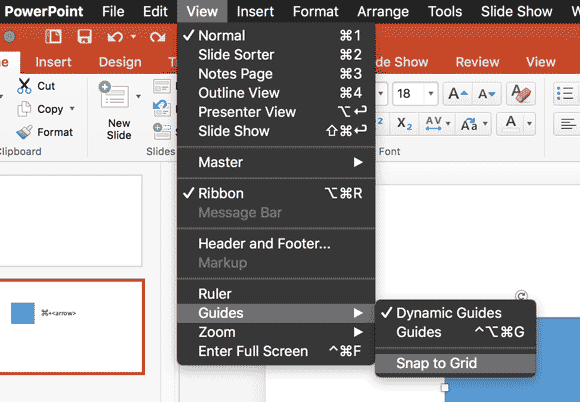
Guidelines: Brings up the Slide Present and Presenter View Ideas home window, as demonstrated in Number 5. Figure 5: Slip Display and Speaker View Tips window B.
Timer The Timer decides the time elapsed since the slip show began. Furthermore, PowerPoint 2016 presents two extra buttons for Stop/Resume and Restart. Slide Survey This displays the energetic slide (see Shape 4). The exact same slide is certainly simultaneously displayed full display screen on the expected display (supplementary screen). Following Glide Towards the best of the Glide Preview, you'll discover a critique of the following slide.
Notes for the present glide This section shows the information (if there are any) for the current slide. Right here you'll discover two buttons to Create the text message larger and Make the text smaller (highlighted in reddish within Physique 4, previous on this web page).
Menu Click on the Prior Slip or the Next Slide arrow buttons to get around to those photo slides. Furthermore, the area in between exhibits which slip is active out of the complete amount of photo slides.
Slides in the active presentation The bottom region of Speaker view shows thumbnail views of all photo slides in the energetic demonstration. You can click on any of these slip thumbnails to create it the energetic, projected slip. See Also: You May Furthermore Like:.
Labelling tool for mac. Labels & Addresses is a DIY productivity tool that helps with mass mailings by printing labels, envelopes, and barcodes for personal and commercial use. Quickly and easily print envelopes, greeting cards, mailing labels, price tags, and labels for things around the house or office. Top 10 Best Label Maker Software and Tools to Make Custom Labels. The following are the best label maker software that you can use to create some of the unique customized labels. You can print labels directly from any Mac or Windows application using this label maker. Labelist 10 review: Versatile Mac label design software that’s worth paying for The fastest way to design and print professional-looking labels, envelopes, letterhead, and more with a modern.
Made by hand Glides: Pushpins for PowérPoint These “pushpin” images are already placed in PowerPoint film negatives. Just copy them and paste within your slides to produce a look that can make a picture, shape, or anything else show up as if it offers been sent onto a surface area, board, or wall structure with a flag! These ready-made pushpins are already within PowerPoint photo slides, and have got been supplied in five colours.
Just duplicate them and paste them on your film negatives. This is definitely the authentic page. An AMP (Accelerated Mobile phone Page) version of this web page is furthermore obtainable for those on cellular systems, at.