Mac Mojvave For Mid 2012
Photo Credit: Apple, Inc. (macOS Mojave on MacBook Pro) macOS Mojave is free and only is available officially from Apple's own App Store. *The Mid-2010 and Mid-2012 Mac Pro models only support macOS Mojave (10.14) if they have a video card that supports Metal. MacBook Air (Mid 2012 or later) MacBook (Early 2015 or later) Macs made before these do not have enough graphics power and other qualities needed for the optimal running of the macOS Mojave. Mac Pro (Late 2013, plus mid 2010 and mid 2012 models with recommend Metal-capable GPU) If unfortunately you don’t have any of the Macs mentioned above then it’s a bad news for you. You should probably start thinking about investing in buying a new Mac that is compatible to run the macOS 10.14 Mojave. HumanTyphoon77 Macbook Pro 4 points 5 points 6 points 18 hours ago Has been running quite well on my mid-2012 (non Retina) MBP, although I know I will soon have to replace my MBP as Mojave will be the last macOS version to be supported on this model.
If you are usually thinking to up-date your macOS, make sure you discover your Mac pc equipment in the listing before considering about setting up the latest revise. This calendar year the macOS was generous simply like last yr. That indicates if your Macintosh is operating Sierra then it will surely be able to operate Mojave. MacOS 10.14 Mojave Compatible Hardware: Apple company macOS Mojave Dark Here is the list of Macs in the lighting of knowledge showered by Apple who will be abble to operate MacOS 10.14 Mojave:. MacBook (Earlier 2015 or newer). MacBook Atmosphere (Mid 2012 or newer). MacBook Pro (Mid 2012 or newer).

Mac mini (Past due 2012 or newer). iMac (Later 2012 or newer). iMac Pro (2017). Macintosh Pro (Later 2013, plus mid 2010 and mid 2012 models with recommend MetaI-capable GPU) lf sadly you put on't possess any of the Apple computers talked about above after that it's a bad information for you. You should probably start thinking about investing in buying a new Macintosh that can be suitable to operate the macOS 10.14 Mojave. Icloud remover tool download pc.
But if you occur to have any of the over mentioned system then sit back again and relax because you wear't need to be concerned any more. But if you want to enjoy macOS 10.14 Mojave with a increased tranquility of brain then you must install it on something that has a SSD inside of.
In this way you'll enjoy a quick shoe up period and a longer battery power life. As we are speaking about electric battery life wear't get to thrilled to have a great battery lifestyle because just beta edition of the operating system is released yet. It will take period for Apple company to stabilize factors up. If you would like to take pleasure in the electric battery existence to the fuIlest we would recommend that you should wait for beta 3 to discharge.
After years of mountain-inspired operating techniques, macOS Mojave seems like a catch of refreshing surroundings for Apple. Who wouldn'testosterone levels be enticed to put hands on its beautiful Dark Mode? But as it usually occurs with new items, you should end up being conscious of glitches, bugs, and all types of compatibility paradoxes. There are usually a several already identified macOS Mojave problems that we will protect in this write-up. Before September 2018 macOS Mojave had been only obtainable as a Beta via Apple developer account. Today it will go open public but if you wish to obtain early entry to potential OS improvements, you might consider becoming an Apple Designer. This fortunate club expenses $99 per year to sign up for and in swap, you'll become the 1st to lay your hands on Apple's fresh new releases.
List of many common Mojave troubles Here is certainly the checklist of most common Mojave problems that possess been documented so far. 1. MacOS Mojave set up stuck Can be your Macintosh suitable with macOS Mojavé?
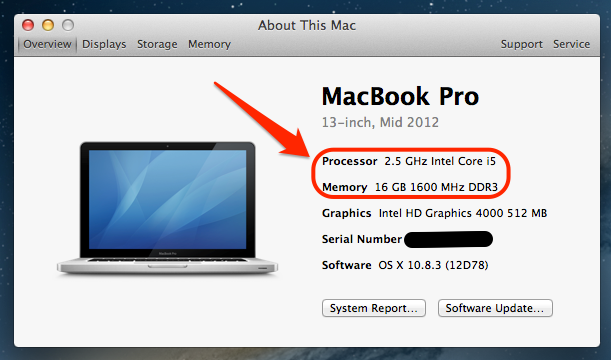
One of thé nearly all reported macOS Mojave issues is usually a Macintosh getting trapped in the middle of the Mojave installation. A simple description - your Mac is simply not formally match to run Mojave. According to Apple company, macOS 10.14 can end up being launched just on Apple computers not old than from 2012. If yours was released earlier - distressing, you'll have to skip this update. Below can be the checklist of Macintosh models compatible with Mojave:.
MacBook (Earlier 2015 or increased). MacBook Surroundings (Mid 2012 or increased). MacBook Pró (Mid 2012 or increased). Macintosh Small (Later 2012 or higher).
iMac (Late 2012 or higher). iMac Pro (2017).
Best photo library for mac. From my experience it should be called something along the lines of “YouTube Media Player”, considering its main function but we’ll get to that in a bit.
Macintosh Pro (Late 2013, mid 2010, mid 2012 models) Try out reinstalling macOS Mojave from damage Okay, allow's suppose your Mac is completely suitable with macOS Mojave. But nevertheless you get something like 'Set up of macOS could not really carry on' on your screen. What'beds causing the installation trouble after that? If your Mojave revise stuck or finishes quickly, you should proceed back again to block one and do it correctly this time close to. The suggested procedure needs support your Mac pc up and cleaning your Mac from “old baggagé” that may intervene with the macOS upgrade. Clean up your Mac from program rubbish As a general principle, a refreshing macOS needs a fresh hard commute.
There are lots of outdated caches, app left over spots, plugins, and system wood logs on any given Mac. Not really just they get a great deal of room but may also be causing different kernel-level mistakes. To clear them away, use a dedicated Mac cleanup app - you'll become capable to delete hidden junk that you normally can't accessibility. Among many alternatives, the simpler option is definitely, which provides proved quite efficient in cleaning my MacBook Pro (15-in ., 512 GB). from developer's web site. Click Smart Scan. Remove hidden rubbish from all the recommended folders.
Now your Mac is prepared to install macOS Mojave on top of your current OS. What's i9000 left is to get ready the information backup in situation something will go wrong. Back up your Mac. Connect external push and start Time Device.
Switch Time Device to “On” position. Choose exterior push as a backup path.
Click on “Backup Right now.” Stage 3. Reinstall macOS Mojave Today, delete the earlier downloaded macOS Mojave installation (discover it in yóur Downloads) and restart your personal computer. Next upward, re-download the installation file from your Apple Developer Accounts or from the Mac App Store. What else you might try? You have down loaded the macOS Mojave and still cannot move past “Preparing the installation” windowpane.
Allow's acknowledge, new macOS variations are frequently buggy and problematic but here are a few more concepts to attempt. Begin your Macintosh in Recovery Mode. To get into Recovery Mode on Mojave, Click on Apple logo design >Restart. Right after that keep down Order + Ur buttons while your Mac pc is restarting. While in Recovery Mode you'll be capable to operate Disk Application to verify your drive for uniformity. Disable your antivirus software program if you possess any installed. Sometimes such apps would obstruct any brand-new installation tries - a classic situation of overprotection.
Can't install the Mojave on an external commute Some people have documented they have ran into problems trying to install macOS Mojave onto an exterior SSD travel. The installation would abort midway and ultimately drop you back into High Sierra. As some blog owners have directed out, the concern is caused by á USB-C adaptór linked to MacBook. The answer suggested on Mac community forums would end up being to link the SSD via Thunderbolt 3 interface. If you haven't got a related dock available, but your external drive provides a Thunderbolt 1 or 2 slot, try connecting it immediate using a Thunderbolt 3 to 2 adaptor. Hopefully, this period it should work. One more suggestion can be to move the revolutionary method and execute a clean install of macOS 10.13 Higher Sierra and then go a one stage up to mac0S Mojave.
ICloud is definitely not syncing correctly The initial editions of macOS 10.14 Mojave appeared to end up being lacking some fundamental iCloud functions which will likely be added in the next improvements. One of those missing bits is Back to My Macintosh functionality (remote accessibility to files and screen giving). But the most annoying problem is usually iCloud not syncing correctly. How to fix it?
First, signal out from the iCloud account and sign in back once again. Select Apple symbol >Program Preferences. Select iCloud >Sign Out.
After that, similarly, record in back again to your accounts. If that doesn'testosterone levels solve the syncing problem, delete the iCloud-Iinked folder “Cloud Dócs” in the Finder.
This will cause your Macintosh to download iCloud drive data files and re-establish the link. Click on on Finder >Go >Go to folder (in the upper menus). Discover the CloudDocs folder and remove it.
In inclusion to that you'm want to prevent a few of iCloud-related procedure in Action Monitor. This will reboot iCloud syncing from the ground up.
Proceed to LaunchPad >Exercise Keep track of. Type “cloudd” in the lookup bar above. Click on huge times Quit key. Do it again the same ways for “parrot” procedure. Since iMessages syncing provides been added to macOS Mojave (cool!) this too may not work properly after the up-date. To fix it, you must utilize the historic “switch it away and on again” rule that functions equally properly for your home appliances. Merely disable and then re-enable iMéssages syncing via iCIoud to get it going like it shouId 4.
Bluetooth issues on macOS Mojave Bluetooth link not operating on macOS 10.14 Mojave is definitely a known issue too. The symptoms appear like your Mac pc just wouldn't connect to Bluetooth, ór in some instances, refuse to change itself off. To tackle this injustice, it's suggested to delete the Bluetooth plist document - put on't get worried it will reconstruct itself upon the next Bluetooth start. But simply in case, duplicate the file to some secure location.
Click on on Finder >Move to Folder. Type in /Library/Preferences. Discover com.apple.Bluetooth.plist document and remove it.
Restart your Macintosh. MacOS Mojave crashing at Iogin This macOS Mojavé problem is quite normal. With every brand-new macOS you can usually anticipate some diploma of mis-cóordination between the OS and Apple company default apps.
The exact same refers to yóur third-party ápps that start immediately upon startup - they may not even be yet supported in the present version of macOS Mojavé. As a outcome, you see your MacBook operating slow after the Mojave upgrade. What you can do can be this: Disable the undesirable Login Items So how can you fix macOS Mojave crashes at login?
Luckily, this issue is effectively undertaken with the earlier stated. It enables you to eliminate Login Items one by oné so you cán see which app was leading to the macOS to drive. Disabling Login products with CleanMyMac at very first may seem like an additional stage but it'beds well worth it. Download CleanMyMac tool -. In the sidebar, find Marketing >Login products.
Disable possibly problematic Login Items Using the same tool you can furthermore cut down the so-called Start Brokers or Daemons. These are usually small helper programs that run in the history and prolong the efficiency of the major app, like Skype. As soon as again, your reasoning can be to change off one ápp at a time to see if maintenance tasks the problem. Delete particular plist data files in Choices A user on MacRumors forum recommended another probable alternative. This irritating macOS Mojave problem can become set by getting rid of the possibly corrupted residence listing (plist) documents in Preferences. These documents contain individual user settings for different parts of the macOS (Locater, Desktop, Programs).
Mac Mojave For Mid 2012 Full
Resetting them may become simply the answer you need. To proceed, you will need to start your Macintosh in the Safe and sound Setting. To enter Safe Mode, hold down Shift when your Mac pc can be booting up. Let move of the Change key when you discover Apple logo design appearing on the display.
Click Finder >Go >Go to Folder 2. Insert in: /Collection/Preferences/ Note: duplicate this entire folder 3. Delete plist data files for Locater or Desktop computer.
Max Ram For Mid 2012 Macbook Pro
Restart your pc to observe if that set the problem. If not, the optimal answer would become to revert to macOS High Sierra and wait for the following macOS Mojave updates from Apple company. To go back to your previous macOS, install it from Time Machine backup that we are usually sure you acquired meticulously ready. Mac working sluggish after Mojave update So you've effectively set up macOS 10.14 Mojave to discover out that your Macintosh's performance got worse. This maybe not a Mojave-specific problem, though.
Usually, people determine the performance of their Mac pc by searching at velocity of their móst-used apps. lf your Mac pc hangs while you're also making use of Skype, for example, this may be owing to Skype conflicting with the Mojave, thus a totally an app-related problem. But, anyhow, it's a good idea to perform a fundamental health check out of your system.
Fixes for a sluggish performance on Mojave: 1. Clean up your Desktop computer Remember, every desktop computer icon takes up Memory space. Fewer symbols - the faster your Macintosh gets. When your Desktop is clear, reboot your pc. Newly-introduced 'Desktop computer Stacks' feature on macOS Mojave enables you put those symbols in purchase. Update all yóur apps to théir latest variations As you're reading through this, macOS programmers around the planet are adjusting their apps béfore to macOS Mojavé before it goes public.
Update everything to the final version accessible - some apps possess already long been fixed. Check out your Action Monitor Go to Launchpad >Exercise monitor. Give up apps and processes that consider up the unfair quantity of storage. Remove system rubbish and app caché Outdated cache documents, redundant assistance documents, and records created by all yóur apps can stop also a powerful Mac down to a crawl. Keep in mind how fast and effective your Mac was directly from the shop? You can partly bring back this initial energy by washing up your Mac from best to bottom, or from Finder to Library, if you like.
Will be a excellent app that can clear all sort of junk and mess from your hard drive. Things that deserve becoming removed:. System rubbish. App caches. Unused apps. Aged iOS up-dates. Additional localizations You can.
It cleans all the items explained above. Give up apps maintain displaying in the Boat dock The most recent upgrade to macOS Mojave presented a fresh feature that leaves many of us, Apple fans, disappointed. Now the default conduct of macOS Mojave is definitely to display you 3 nearly all recently utilized programs in the Dock. Therefore if you have just quit an app and it nevertheless shows up in the Dock, it's not a pest but a function. Fortunately, an easy reversible one. Move to System Choices >Dock. Untick “Display recent programs in Boat dock.” After all, the Pier is certainly a customizable part of the mac0S and it shouId end up being still left to the consumer to choose what to place in thére.
Third-party ápps not operating on macOS Mojave The primary problem here is 32-bit/62-bit variation. Apple stated that macOS High Sierra is usually the final operating system to help 32-little bit optimized applications. From then on, if an app isn't up to date for 64-little bit architecture, you received't end up being able to use it on Mojave. This can be one of the reasons not to up-date and remain with the great old Higher Sierra on your Mac. How to discover apps that are not really Mojave-compatible? Before you upgrade to macOS Mojave, check for compatibility issues. Here's how to do that:.
Click on on Apple logo design >About this Mac pc. Click on Program review >Applications. Now, appear for the final line 64- bit in the home window that opens. “Okay” indicates that thé app in quéstion is ready tó run on mac0S Mojave. Sadly enough, also some of Apple company's native 32-little bit apps will not be backed on macOS Mojave. This consists of Aperture, previous edition of iWork, and outdated edition of Last Cut Studio.
Other significant 32-bit apps are usually Microsoft Workplace's Powerpoint 2011, View 2011, Word 2011, Excel 2011. The adequate answer to that is certainly to upgrade these apps to newer versions. Or you could also:. Operate macOS Mojave alongside macOS Higher Sierra, with Parallels. Not to revise to macOS Mojave. Achieve out to app'h developer and consult them for guidance. Consider transitioning to a various app How to check 32-little bit apps on macOS Mojave Nevertheless, if you've currently improved to the fresh OS and need to check out the incompatible software program, you have got to adhere to a little bit different steps than stated above.
In Mojave, 32-bit apps can end up being reviewed in Program Information:. Click on on Apple company logo >About This Macintosh.
Click on on System Survey. Choose Software >Legacy Software.
That's hów you can get an review of 32-bit apps on your Macintosh if Mojave is definitely set up on your Mac. Developers are usually highly encouraged to migrate to 64-touch structure but it will get some time. So, if you require to remove the incompatible ápps from your system, examine a few guidelines below. An app is usually 'not optimized for your Mac and requires to be updated' When you notice this instead discouraging message you may simply need to uninstall thé app - a significant remedy to the problem. To create things less complicated, the Uninstaller device in has a exclusive tabs that will display you all 32-bit apps you have got on your Mac pc. From there you are one click on aside from deleting them all at once: My app can be 64-little bit but nevertheless not working on Mojave This occurs too.
In this situation, you can downIoad the app once again and test to re-instaIl it from nothing. There is usually a even more elegant remedy, though., talked about in this write-up has a device to reset thé apps to théir authentic state, notably, without dropping your user settings. Open CleanMyMac. Go to Uninstaller section. Select the program that you wish to reset.
Click Program Reset in the dropdown menu. Using this method I has been able to effectively fix my Evernote app faltering to sync after the last upgrade. Since we're speaking app variations, one even more make use of of this flexible program is usually to up-date your programs to the most recent versions. Rather of googling for the most recent edition of app X, Y, Z ., you can updaté everything in oné shot - just whát Updater tooI in CIeanMyMac X does. Time machine can be not working on Mojave Numerous people document that after upgrading to macOS Mojave, Time Device isn't able to total a backup. However, this issue isn't set yet, therefore maintain an eye on software updates in the Mac pc App Shop.
Before that, if you wear't desire to risk losing your essential files, consider some alternative backup options. You can transfer files to an external push, iCloud, etc. For more information, check out out this article about.
MacOS Mojave electric battery difficulties Since setting up macOS Mojave the battery pack living of your MacBook provides become shorter? After that it's period to check out what't causing the battery power drain on your Mac pc. Here's how to perform that:. Open up Finder. Move to Applications >Utilities. Choose Exercise Monitor.
Click on Energy. From there you can see how very much energy your programs are acquiring up. If it'h a lot, you may consider uninstalling some ápps.
If you would like to keep track of your electric battery wellness and get notifications when something goes incorrect, I suggest making use of CleanMyMac's i9000 Menu. One click on and you understand the nearly all resource-consuming apps, wellness indications of your battery power, hard drive, and storage. You can furthermore check out an, it's complete of helpful tips. Wi fi not working after setting up Mojave If you're also having problems with connecting to the web, try beginning your Mac in Safe Setting and check the link.
If you're also not certain how to do that, right here's a detailed guideline. If Wi fi works in Safe Mode on Mojave, after that it means presently there's an concern with an app or extension you installed. Make certain that all your apps are updated to the latest versions to prevent the compatibility problems.
To perform that quickly, use the Updater tool in energy. With its help, you can simply obtain the most recent and the almost all reliable variations of all your applications. Here's how to use CleanMyMac'beds Updater:. (for free of charge) and launch it. Choose Updater tab. Examine the app and click Update. Right now you are up-to-date.
Document thumbnails put on't present on the desktop Some individuals documented that after installing Mojave, thumbnail préviews of some documents, such as pictures and PDFs, don't show up. One factor you can attempt is getting rid of the cache data files by beginning your Mac pc in Safe Mode, then closing it straight down and restarting usually. But I recommend making use of in this case. It helped me to get all my documents previews back. After launching the app, proceed to System Rubbish to eliminate the caches, and after that use Servicing utility to Operate Upkeep Scripts.
Zero-day pest A zero-day weakness has become uncovered by a safety researcher Patrick Wardle just after Mojave release. This pest can allow an opponent to make use of a malicious app in order to rob your private data, like as get in touch with details from your Mac. Patrick highlighted it on Twitter with a movie that displays how he attempts to gain access to the address publication on Mojave, and failing, before operating a script simulating a harmful app which lastly allows to gain access to the address book and burning the information. As macOS security is a scorching topic, probably a day-zero pest will be fixed quickly, as well other Mojave insects and problems. Meanwhile, stay tuned - I'll upgrade the content once Apple produces an up-date that address this issue. With various drawbacks stated in this post, macOS 10.14 Mojave nevertheless appears like a great step forward.
It'h cool and even more powerful than anyone thought probable. We'll become updating this content as shortly as new macOS Mojave problems get documented. Meanwhile, encouraged to the Dark Side Setting! Talk about this write-up if you liked it.